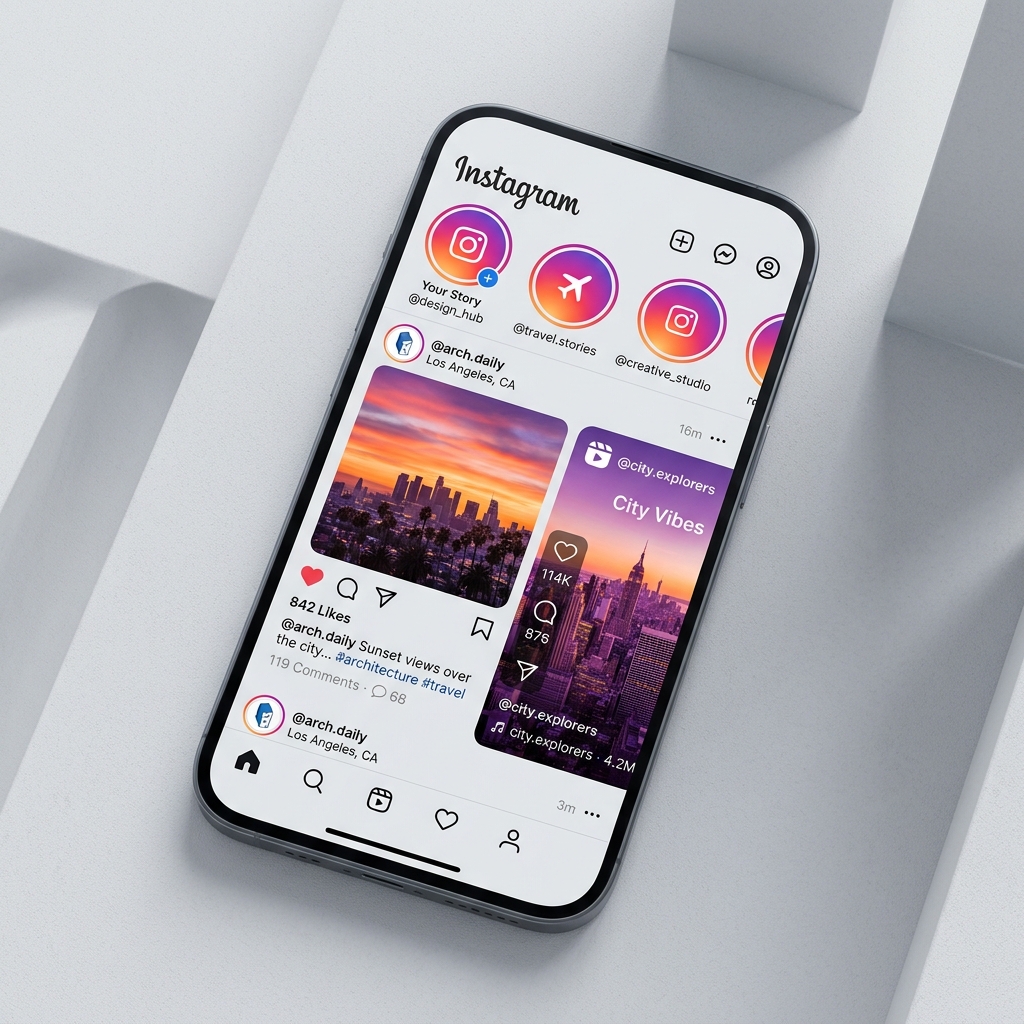
If you have spent any time trying to grow an Instagram account, you know the feed algorithm is a brutal lottery. If your Instagram reach is dropping, you edit a photo or polish a Reel, hit publish, and watch it get buried under a mountain of recommended content and sponsored posts. But there is a second entry point sitting at the very top of your followers' screens: the Story tray.
Many users check their stories before they ever scroll through their feed. Sharing your feed posts directly to your stories is the simplest way to rescue a post from algorithm death. Here is a direct, step-by-step walkthrough on how to do it cleanly, along with the design hacks I use to make sure users actually tap through.
- Double Your Exposure — Stories give you a second chance to catch followers who bypass the main feed entirely.
- Public Accounts Only — You cannot share posts from private accounts to your story, even if you follow them.
- Interactive Anchors — Shared posts act as links. When a user taps the post in your story, they are taken directly to the original feed upload.
The 3-Step Reposting Process
Sharing a post to your story takes less than ten seconds. Here is the process:
-
Locate the Target Post: Open the Instagram app and navigate to the photo, carousel, or Reel you want to share. This works for your own content or public posts from other accounts.
-
Tap the Share Button: Tap the paper airplane icon located directly underneath the post (next to the like and comment icons).
-
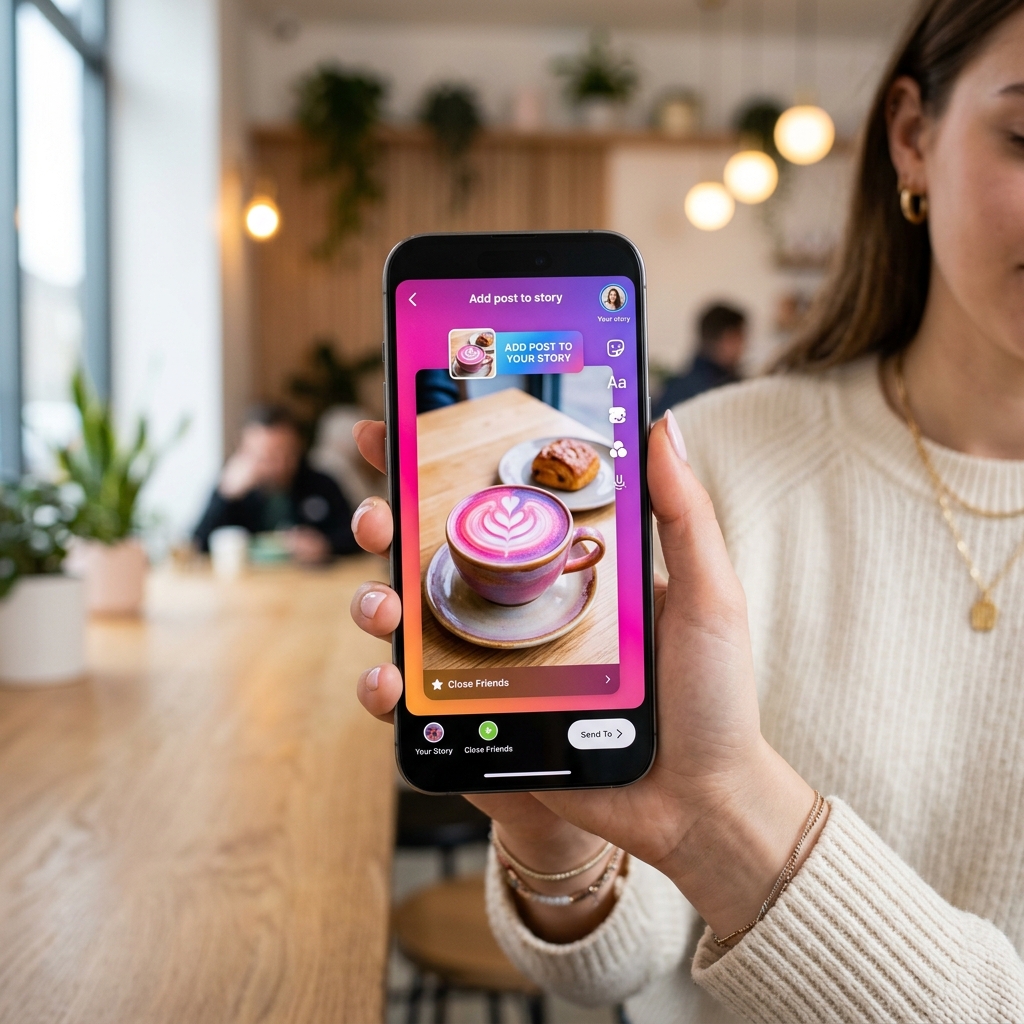
Send to Your Story: Tap the Add to story button at the bottom of the sharing panel. This opens the story editor interface, where you can customize, scale, or edit the layout before hitting publish.
Why You Should Share Posts to Your Stories
Instagram uses separate algorithms for the main feed, Reels, and stories. The feed is highly competitive and relies on early engagement to gain reach. Stories, however, are served chronologically and sit at the top of the app.
When you share a post to your story, you are bypassing the main feed algorithm and placing your content directly in front of your most active followers. If your post is not performing well in its first hour, sharing it to your story with a question or poll can drive the early profile visits and comments needed to kickstart feed distribution.
How to Customize Your Story Background
By default, Instagram generates a gradient background matching the colors of the shared post. Often, these gradients look messy. You can easily replace them with a clean, solid background:
- In the story editor, tap the **three dots** in the top-right corner and select the **Draw** tool (the squiggle line).
- Select your color of choice from the bottom palette, or tap the eyedropper tool to pick a color directly from the post itself.
- Hold your finger down on any blank space of the story background for two seconds. The entire background will fill with your selected color.
This simple adjustment makes your story look professionally designed and keeps the focus strictly on the post you are sharing.
Sharing Other People's Content Responsibly
Curating posts from other creators in your niche is a great way to provide value and build connections. When you share someone else's post to your story, Instagram automatically credits their username. However, it is best practice to add a text tag:
Add a brief text overlay explaining why you love their work and tag their handle using the @mention feature. This triggers a direct message notifying the creator. Very often, creators will reshare your story to their own audience, exposing your profile to a new community of followers.
Pro Engagement Tips
Do not just post the raw image and hope for clicks. Use these layout tricks to increase engagement:
Explain *why* they should read the post. Give them a quick teaser or bullet point listing the main takeaway.
Place a poll, emoji slider, or question box directly on the story. Stories with interactions are pushed to the front of the story tray.
Use a "New Post" sticker or emoji to partially cover the main detail of the image. This sparks curiosity, forcing them to tap the post to view it.
Close Friends and Story Highlights
If you are sharing a post that is highly personal or only relevant to a specific audience, use the Close Friends option. This lets you share the story exclusively with a list of users you select, keeping your feed cleaner for the general public.
Also, remember that standard stories expire after 24 hours. If you are sharing a major announcement, a customer testimonial, or a key resource, save that story to your **Profile Highlights**. Highlights act as permanent folders right under your bio, allowing new profile visitors to access your best content at any time.
Troubleshooting: Why Can't I Share a Post?
If the share button is missing or the "Add to story" option is not showing up, check these common reasons:
Frequently Asked Questions
Yes. If you share a post from a public account to your story, the creator will receive a notification in their Activity feed. If you tag them using the @mention sticker, it will also send a direct message.
Yes. Once the post is imported into your story editor, tap the image once. This toggles between a layout showing the post caption and a clean layout that only displays the visual asset and the creator's username.
No. Resharing your own feed posts to stories is a standard growth strategy. It helps capture users who only browse stories and provides a second touchpoint for followers who missed the initial feed upload.
My Final Takeaway
Reposting your feed content to your stories is an essential workflow for social media growth. It takes less than 10 seconds, helps bypass feed clutter, and gives your photos and Reels a second chance at exposure. Set a solid colored background, add an interactive poll, and make resharing a consistent step in your publishing workflow.

Priyanka Kumari
Priyanka Kumari is a digital marketing strategist specializing in audience engagement and social media configurations. She helps creators optimize their workflows to build sustainable online communities.
Read more articles by this author